 DREFLY
Record your screen, share it in Slack, done.
Drefly for Slack adds a /drefly slash command and a set of shortcuts so a
screen recording can start, finish, and land back in a channel without ever leaving
Slack. Paste a recording link from record.drefly.pro anywhere in your workspace and
Slack unfurls it into a playable video preview, complete with the AI transcript and
summary if the owner has shared them.
- Free
- to add and use
- 5
- shortcuts built in
- 1
- command, /drefly
By clicking Add to Slack you agree to our Terms of Service and Privacy Policy. Drefly is privacy-first: we don't store your recordings on our servers, and we don't read the content of your Slack messages. See the Slack section of our Privacy Policy for the full details.
Recording and sharing, without the tab switching
Record without leaving Slack
Run /drefly or use the Record shortcut to start a screen recording. When
it's shared, it posts back to the channel automatically.
Links unfurl into playable video
Paste a record.drefly.pro link in any channel and Slack shows a playable preview instead of a bare link.
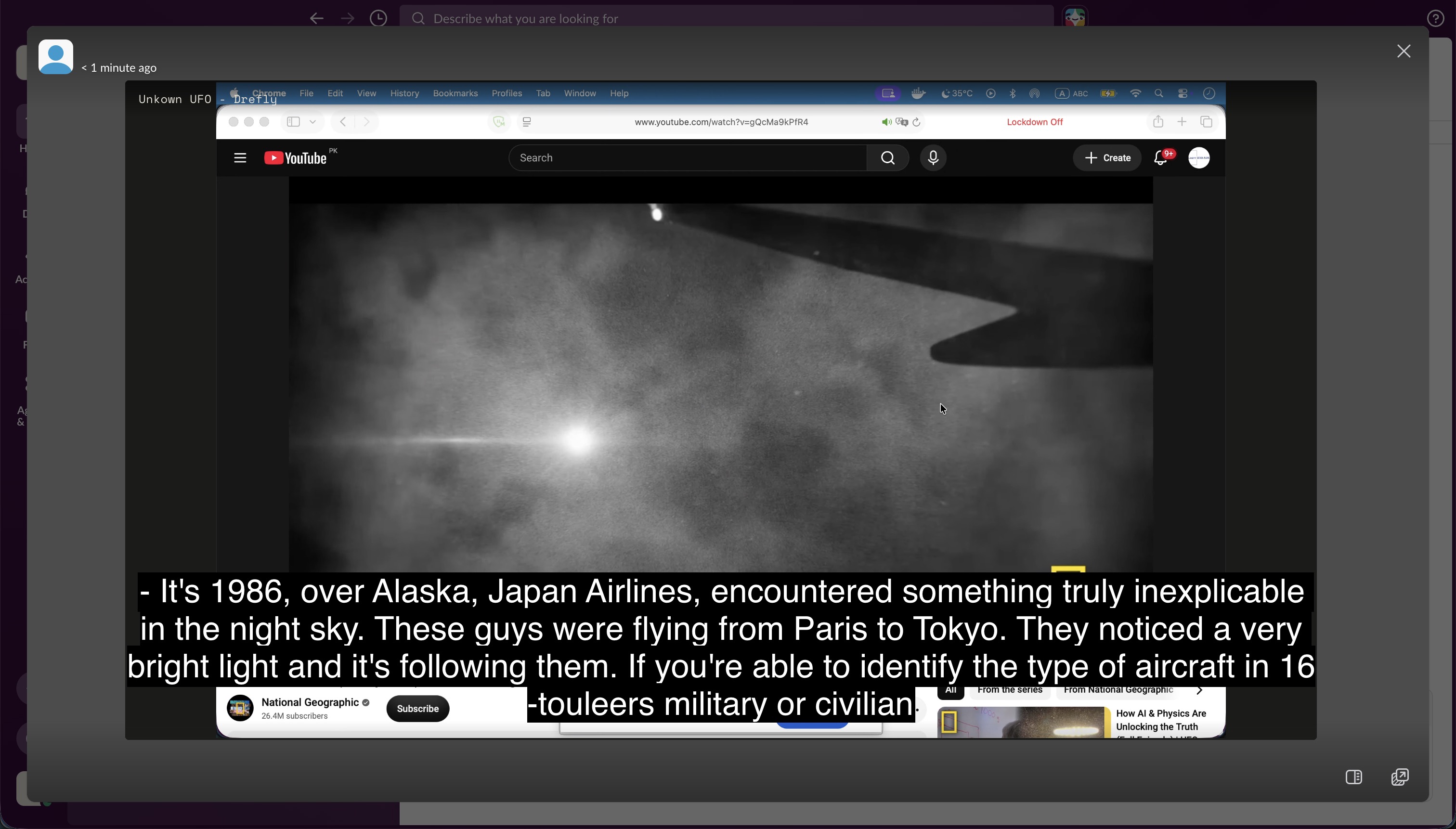
AI transcript and summary included
When the owner has shared insights, the unfurled recording carries its transcript, summary, and chapters along with it.
Customer recordings, handled in the channel
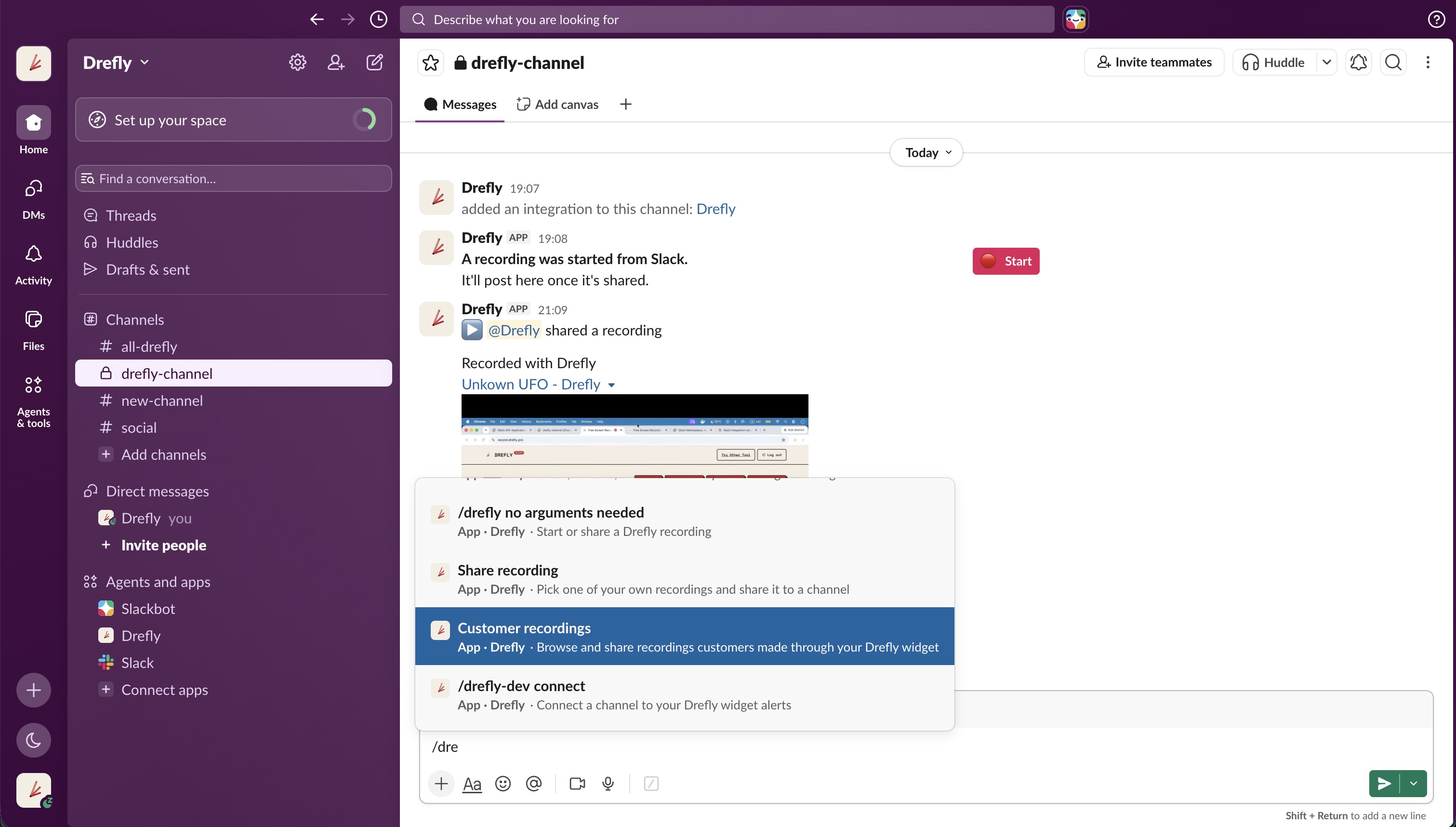
Customer recordings are auto-notified into the channel you choose, and the Share recording, Customer recordings, and Manage recordings shortcuts let you pick, rename, or delete an existing recording without opening the dashboard.
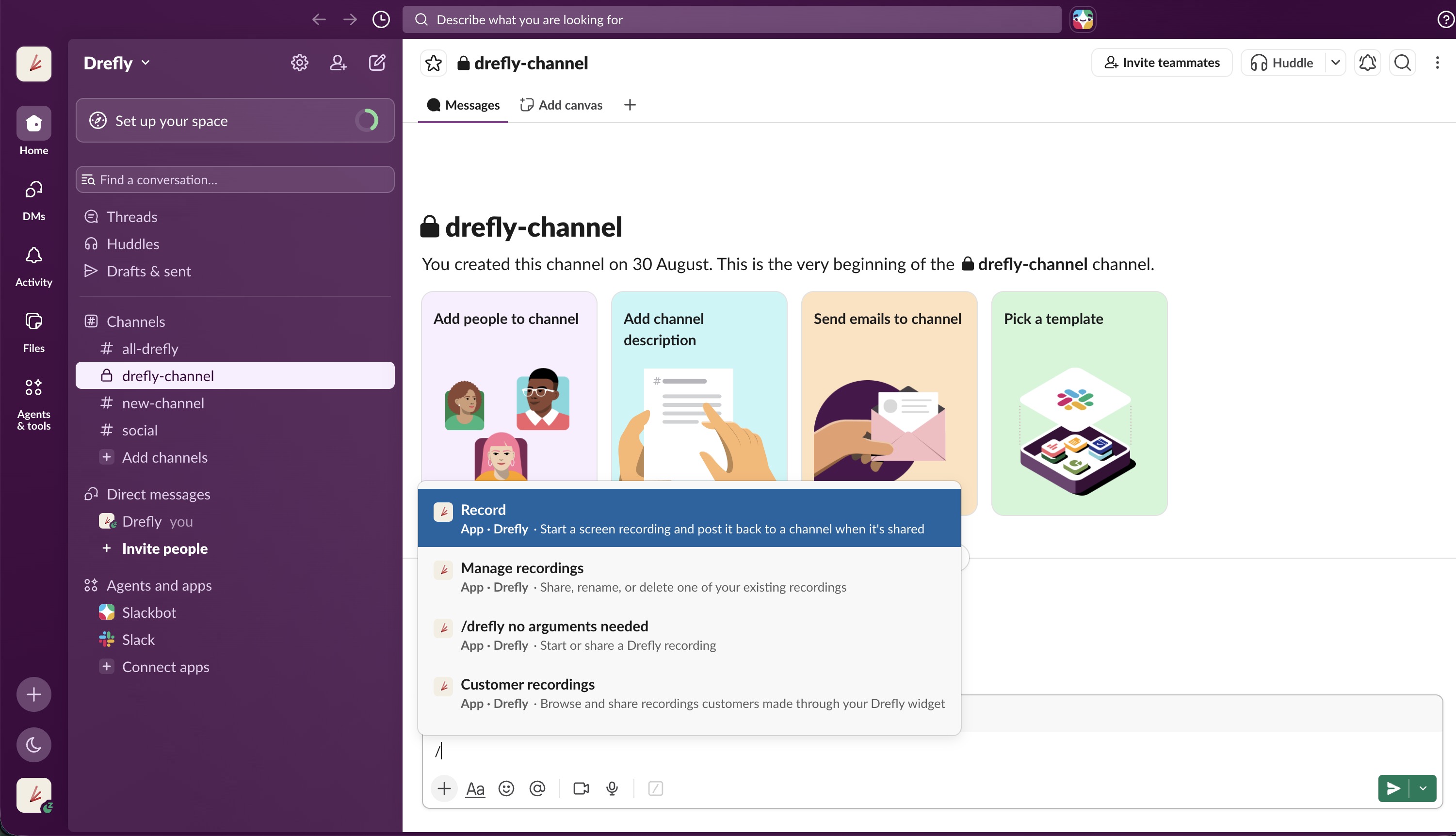
/drefly in a channel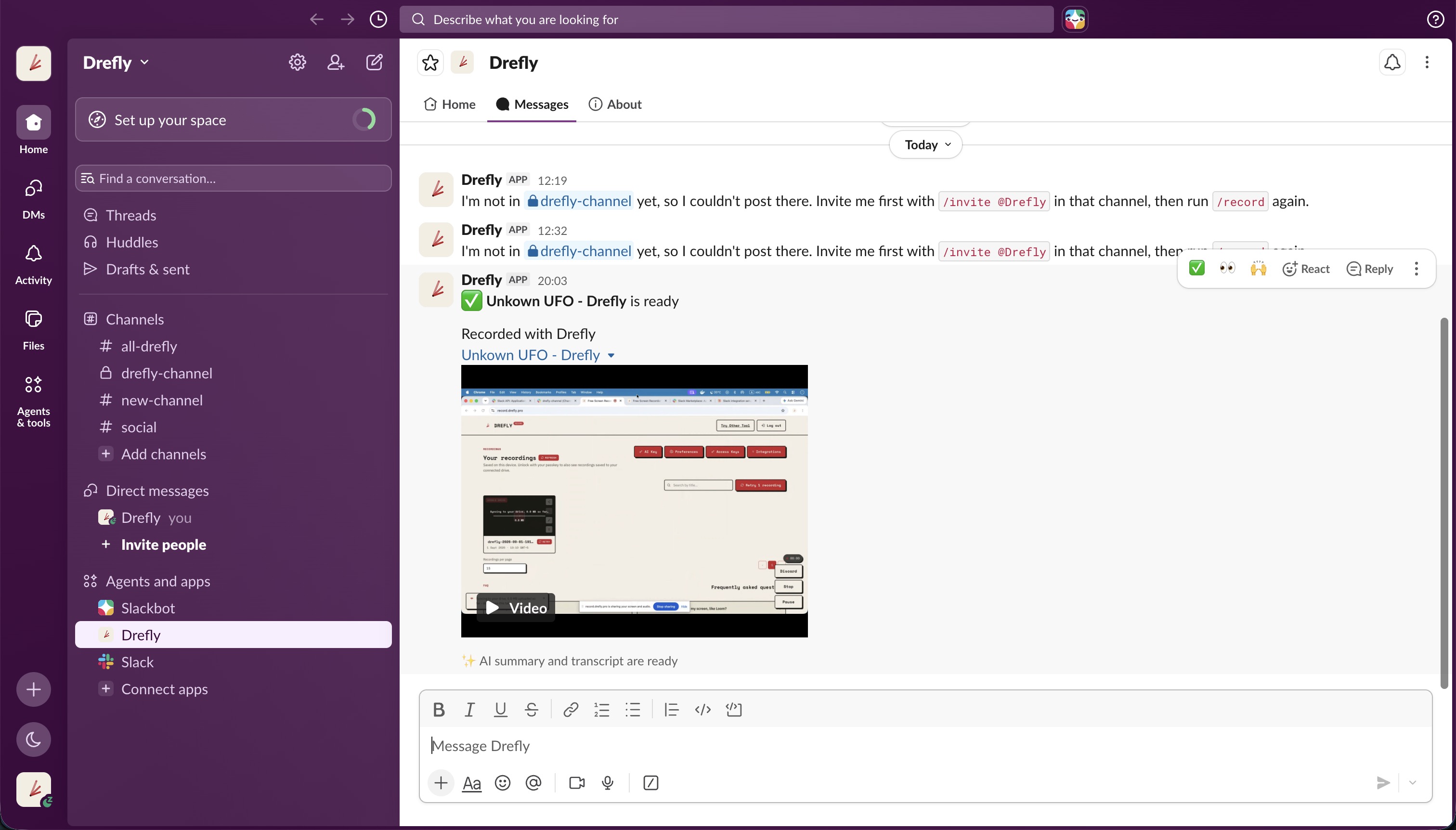
Get started in three steps
Add Drefly to your workspace
Click Add to Slack and approve the permissions on the next screen. This takes a few seconds and doesn't require a separate Drefly account.
Connect your Drefly account
Run /drefly once and follow the prompt to link your Drefly account. The
same account link happens if you click Unlock your Cloud Recordings on record.drefly.pro and choose Sign in with
Slack, or open Integrations, go to the Teams section, and click Connect next to
Slack on developer.drefly.pro, if you'd
rather start there. This is what lets a finished recording post back to your
channel.
Record and share
Use /drefly, the Record shortcut, or paste a recording link into any
channel. Drefly handles posting, unfurling, and the AI insights from there.
Every slash command and shortcut, in one place
Drefly for Slack adds two slash commands and five shortcuts. Slash commands are typed straight into the message box. Global shortcuts live behind the lightning bolt icon next to the message box, or in the shortcuts menu opened from there. The one message shortcut only shows up on an existing message, under its "More actions" menu.
| Name | Where to find it | What it does | How to use it |
|---|---|---|---|
/drefly |
Slash command, any channel or DM | Opens the recorder, or shares a recording you already made | Type /drefly and press enter, no extra words needed |
/drefly-dev |
Slash command, any channel | Connects a channel to alerts for a Drefly widget you manage | Type /drefly-dev connect #channel-name, using the channel you
want the alerts to land in |
| Record | Lightning bolt icon, or the shortcuts menu | Starts a screen recording that posts to the channel once you share it | Click the lightning bolt, search for Record, and select it |
| Share recording | Shortcuts menu | Picks one of your own past recordings and posts it to a channel | Open the shortcuts menu, choose Share recording, then pick from the list |
| Customer recordings | Shortcuts menu | Browses recordings customers made through your Drefly widget and posts one to a channel | Open the shortcuts menu, choose Customer recordings. Needs a company set up on developer.drefly.pro first |
| Manage recordings | Shortcuts menu | Shares, renames, or deletes one of your existing recordings | Open the shortcuts menu, choose Manage recordings, pick a recording, then an action |
| Share to thread | "More actions" menu on any message | Replies to that exact message with one of your recordings | Open the three dot menu on a message and choose Share to thread |
Three ways to install Drefly for Slack
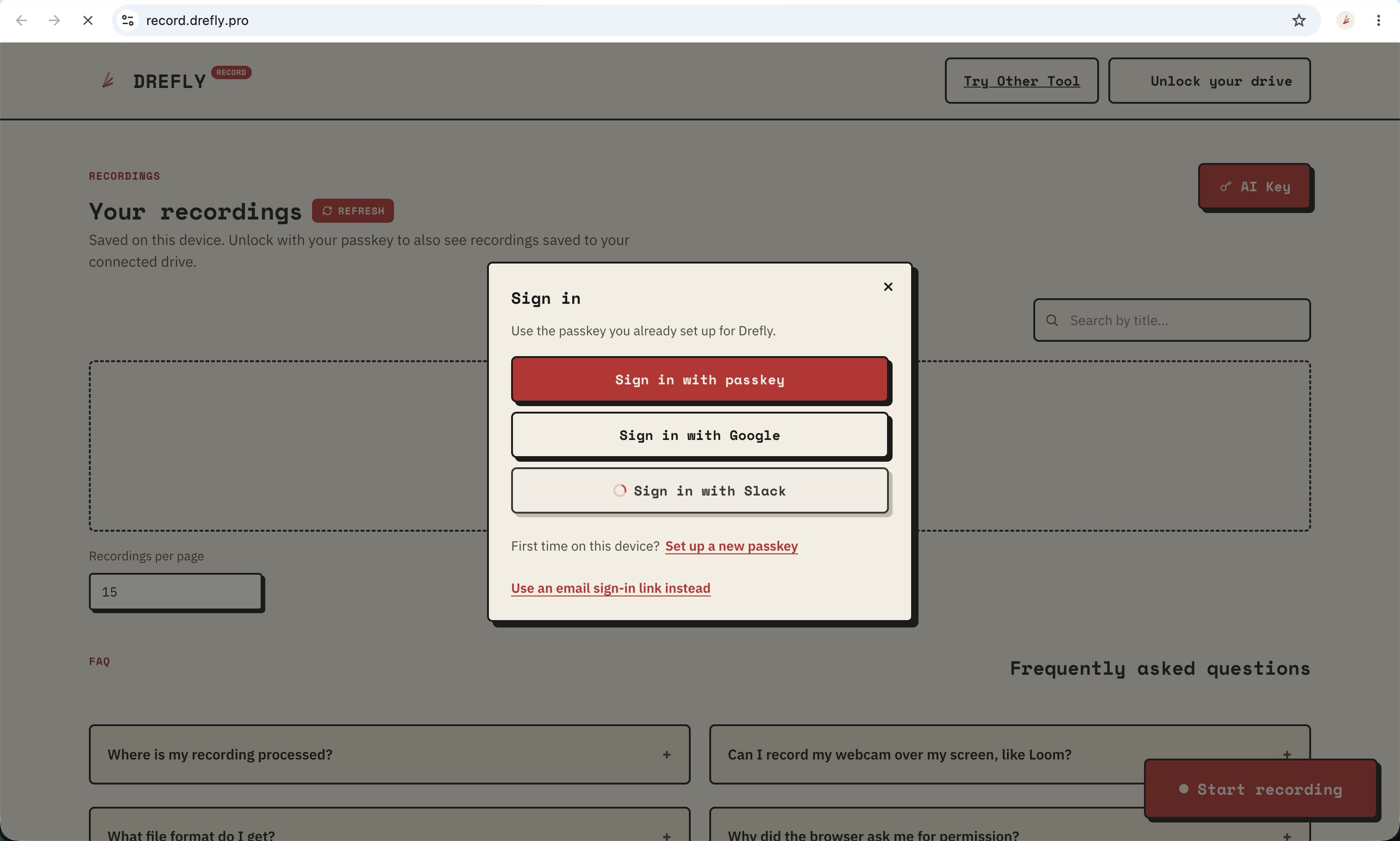
Sign in with Slack from the Unlock screen
On record.drefly.pro, click Unlock your Cloud Recordings in the top right of the page, then choose Sign in with Slack in the window that opens and approve what Slack shows you next. On developer.drefly.pro, open the Unlock your dashboard screen, choose Use an email sign-in link instead, then choose Sign in with Slack instead in that window. Either path installs Drefly in your workspace and connects your Drefly account in one go.
Connect Slack from Integrations
Already signed in some other way, such as a passkey, Google, or an email link? Open Integrations, go to the Teams section, find Slack, and click Connect. This works the same way on record.drefly.pro and developer.drefly.pro.
Install it from inside Slack
Open Slack, click Apps & Agents in the left sidebar, search for Drefly, and
click Install. Approve the permissions Slack shows you and Drefly is added to the
workspace. Run /drefly once afterward to link it to your Drefly
account.
If the install button looks grayed out, or Slack never shows you a permissions screen to approve, your workspace has app installs restricted to admins. Ask your Slack admin to install Drefly for the whole workspace using any of the steps above.
Removing Drefly from your workspace
Remove it yourself
Click your workspace name in the top left of Slack, choose Settings & administration, then Manage apps. Find Drefly, open its page, and click Remove App (Slack sometimes labels this Uninstall). Confirm when asked.
Remove it as an admin, for everyone
From Settings & administration, open Manage apps, or your workspace's admin App Management page. Find Drefly in the list of installed apps, open it, and choose Remove. This takes the app out of the workspace for every member at once.
Disconnect from Drefly directly
Sign in at record.drefly.pro or developer.drefly.pro, click Integrations, open the Teams section, and find Slack. If it shows Connected, click Disconnect and confirm. This revokes Drefly's access in Slack and removes the stored token from Drefly's database right away, so the slash command, shortcuts, and link unfurling stop working immediately. To also take Drefly out of Slack's own App Directory, use the removal steps above from inside Slack.
What happens right after you remove it
Slack tells Drefly the moment the app is removed or its access is revoked. Drefly
immediately deletes what it stored for that workspace's connection and disconnects every
personal Drefly account that was linked through it, so /drefly, every
shortcut, and link unfurling all stop working right away. Recordings you already made
are not touched, they stay exactly where they were: your own storage bucket for a
company widget, or your personal account for individual ones. Only the Slack connection
itself goes away. See the Drefly
for Slack section of the Privacy Policy and the Sub-processors page
for the exact details on what's stored and for how long.
Nothing is lost by removing and reinstalling later. Click Add to Slack again, approve the
permissions the same way, and reconnect with /drefly. Past recordings are
still there, since they were never tied to the Slack connection in the first place.
Managing customer recordings from Slack
If your company has embedded Drefly's Record widget on your own site so customers can send in a bug report or a walkthrough with no signup of their own, Slack becomes a second place to see and act on those recordings, alongside the developer dashboard. Here's what each piece does:
- Customer recordings shortcut - browse recordings a customer sent in through your widget and post one straight to a channel, without opening the dashboard first.
- Manage recordings shortcut - covers your own recordings, share, rename, or delete one from Slack.
/drefly-dev connect #channel-name- the setup step that makes new customer recordings show up as alerts in a channel automatically, the moment a customer finishes recording. Only an admin on that widget's company can run this.
None of this works until a company and a storage bucket are set up first. That part happens outside Slack, on the developer dashboard, and is covered start to finish in How to Integrate Drefly Into Your Company.
More on Drefly Record, in depth
- Drefly for Slack: Record, Share, and Get AI Transcripts Without Leaving Slack - every slash command and shortcut, walked through in one post.
- Why Use Drefly's Record Tool for Your Company - why teams embed the widget in the first place, PIN protection, expiry, and private-by-default AI insights.
- How to Integrate Drefly Into Your Company - the full setup walkthrough, from the embed snippet to connecting your own storage bucket.
- Drefly vs Loom - how Drefly's free plan compares to Loom, feature for feature.
- Free Screen Recorder With No Signup or Watermark - what record.drefly.pro gives you on its own, outside of Slack.
- Why I Built Drefly - the story and reasoning behind the whole toolkit.
Frequently asked questions
Is Drefly free to use in Slack?
Yes. Adding Drefly to your workspace and using the slash command and shortcuts costs nothing.
What permissions does Drefly request, and why?
Drefly asks for permission to post messages to a channel, unfurl record.drefly.pro
links, register the /drefly command, read channel names so you can pick
one, and message you directly. Each permission maps to one of the features above,
nothing more.
Which record.drefly.pro links unfurl in Slack?
Paste a share link, either record.drefly.pro/share/token for a personal
recording or record.drefly.pro/share/company/token for one shared
through a company widget, and Slack unfurls it into a playable video preview. Behind
the scenes the preview loads the same recording through a bare, chromeless player at
/share/token/embed or /share/company/token/embed, so the
video plays right there in the channel instead of opening a new tab. You never need
to paste that embed link yourself, the plain share link is enough.
Do I need a separate Drefly account?
You can record for free at record.drefly.pro without one. Connecting your Slack account to Drefly is what lets a finished recording post back to a channel automatically.
Does Drefly store the content of my Slack messages?
Drefly only acts on what these features need, such as the link being unfurled or the command being run. See our Privacy Policy for the full details on what's collected and how it's handled.
How do I remove Drefly from my workspace?
Remove it anytime from your workspace's App Directory in Slack, or disconnect it straight from your Drefly account at record.drefly.pro or developer.drefly.pro, no need to contact us first. See the full step by step removal guide above for the member, admin, and account disconnect paths, and what happens to your recordings afterward.
Where can I get help?
Email support@drefly.pro and we'll get back to you within two business days.
Ready to add Drefly to Slack?
Free to install, no extra account required to get started.